Options for Changing Games
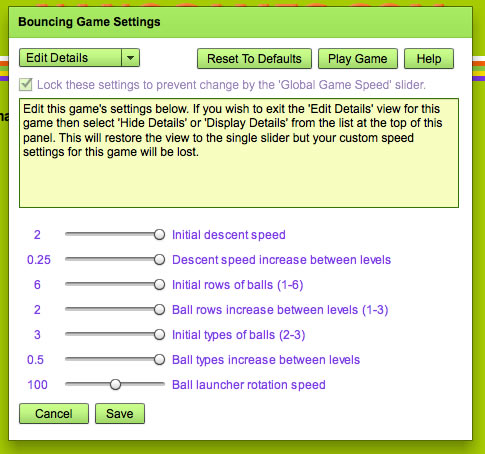
Edit Games
The editor is launched from the Game Menu and will launch the editor for the currently selected game. Use the keyboard to highlight a game icon and press the Spacebar, or hold down the SHIFT key and click on the game icon.
The 3 game editor views.
- 1. Hide Details: Displays only the simple Speed sllder control. This is the default view.
- 2. Show Details: Display the details so you can see how the changes that occur when you move the Speed slider.
- 3. Edit Details: In this view you can view and edit individual details of the game. The Speed slider is not displayed.
The Editor panel displayed above has 4 options:
- 1. Reset Game Defaults: clicking this button will reset ALL the game settings to their default mainstream settings.
- 2. Play Game: test play this game with your new settings.
- 3. Game Speed Slider: Quickly adjust the speed of the game. This slider only adjusts the settings that influence the reaction times required in the game. For many players using the Game Speed slider will be sufficient, but more settings can be adjusted using the Fine-Tune sliders available in the 'Display and Edit' view.
- 4. Fine-Tune Sliders: Fine-tune the settings of the game. Add more lives or more time or simplify the game. Many values are represented as a percentage (%) of the default value or in milliseconds (ms). Details of the settings are available by clicking on the 'Help' button.